



Description
Download 2011 Calendar Windows 7 Theme – Free Desktop Calendar Wallpaper for Windows 7
Overview
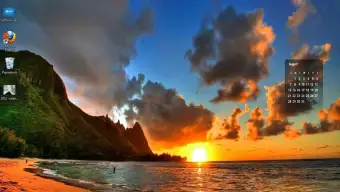
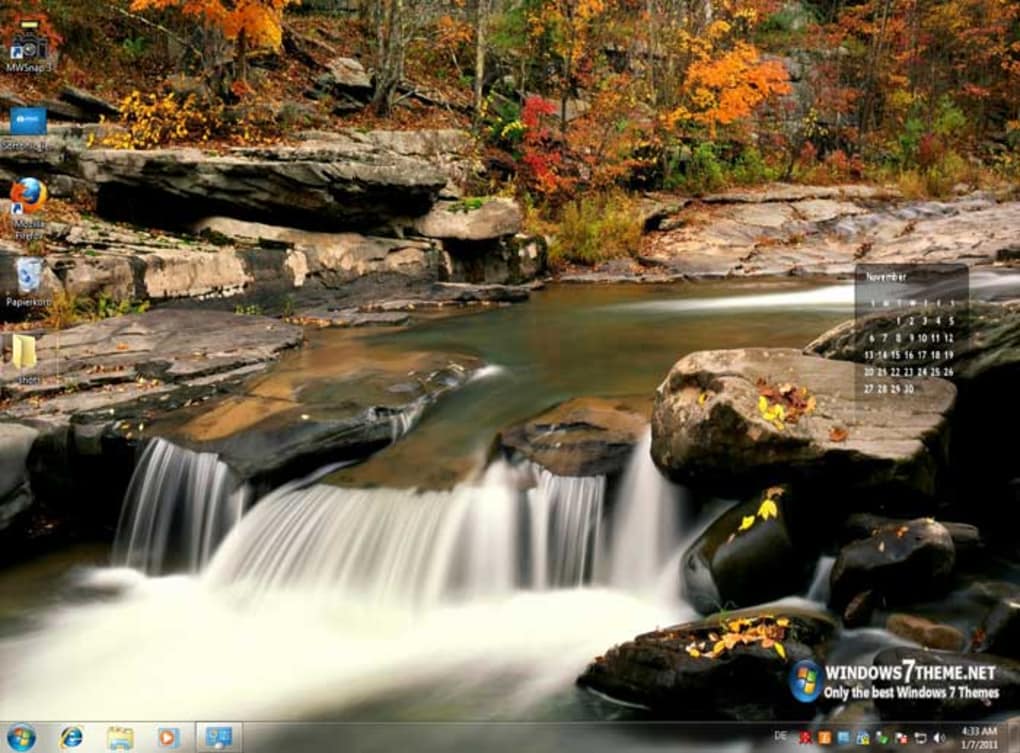
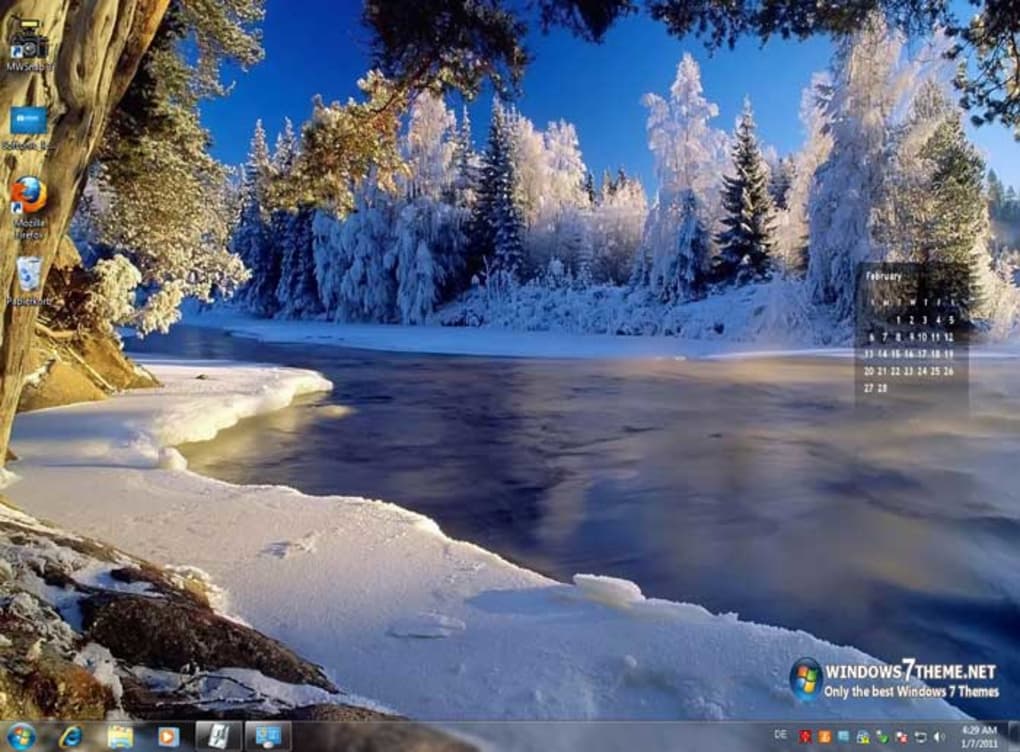
The 2011 Calendar Windows 7 Theme is a thoughtfully designed collection of high‑resolution landscape wallpapers that double as an on‑screen calendar. Targeted at Windows 7 users who want a visually appealing and functional desktop, the theme offers a range of nature‑inspired scenes—from tranquil beaches to snow‑covered forests—each overlaid with a semi‑transparent month view. The calendar is integrated directly into the background, allowing you to glance at the date without opening a separate widget or application. This approach not only saves screen real‑estate but also creates a calming atmosphere that can reduce the stress of a busy workday. The theme’s transparent design ensures most desktop icons remain visible, while the subtle color palettes keep the overall look clean and professional. Although a few backgrounds may clash with certain icon colors, the overall experience is smooth, especially after a quick adjustment of icon placement. Ideal for nature lovers, remote workers, or anyone looking to personalize their Windows 7 environment without sacrificing functionality, the 2011 Calendar Windows 7 Theme offers a free, secure, and easy‑to‑install solution that blends aesthetics with practicality.
Key Features
- **Seasonal Landscape Collection** – Over 20 high‑definition images ranging from sunrise beaches to winter woods.
- **Integrated Monthly Calendar** – Transparent calendar overlay that updates automatically at the start of each month.
- **Icon‑Friendly Transparency** – Designed to keep most desktop icons readable without manual tweaking.
- **Lightweight Installation** – The total download size is under 30 MB, ensuring a quick setup even on slower connections.
- **Free & Secure** – No hidden fees, adware, or spyware; the package is digitally signed by the developer.
- **Customizable Date Format** – Options to display the date in DD/MM/YYYY or MM/DD/YYYY, matching regional preferences.
- **Automatic Yearly Update** – A simple patch is provided each New Year to keep the calendar current.
Installation & Usage Guide
Getting the 2011 Calendar Windows 7 Theme up and running is straightforward. First, download the ZIP archive from the official site or a trusted software repository. After the download completes, right‑click the file and select “Extract All…” to unpack the contents into a folder of your choice. Inside, you’ll find a series of .jpg files for the backgrounds, a .reg file that registers the calendar overlay, and a short “ReadMe.txt” with troubleshooting tips.
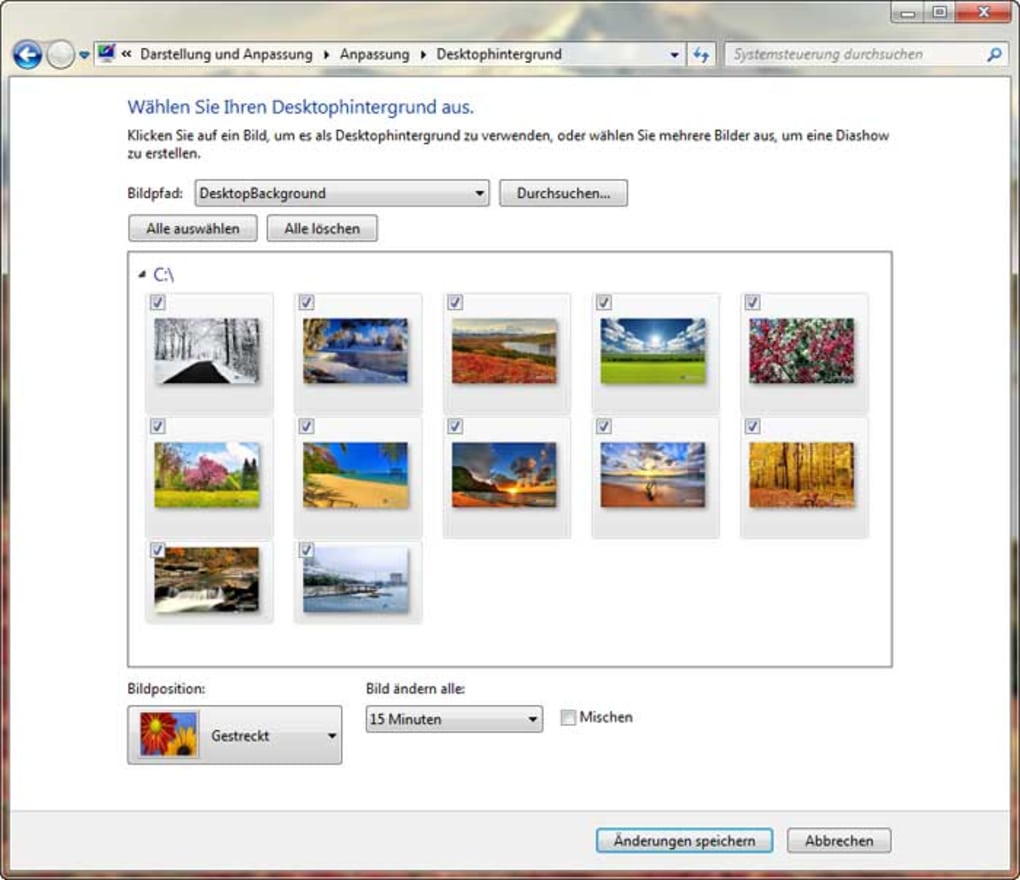
To install, double‑click the .reg file; Windows will prompt you to confirm that you want to add information to the registry. Click “Yes” and then “OK” after the operation succeeds. This step integrates the calendar data with the desktop rendering engine. Next, right‑click on the desktop, choose “Personalize,” and navigate to “Desktop Background.” Click “Browse,” locate the extracted folder, and select the wallpaper you prefer. The calendar will appear automatically in the lower‑right corner of the screen. If the calendar clashes with your icons, you can adjust its position via the “Calendar Settings” shortcut added to the Start menu during installation.
For users who like to switch backgrounds frequently, the theme includes a small utility called “ThemeSwitcher.exe.” Running this program presents a thumbnail view of all available wallpapers, allowing you to preview and apply a new scene with a single click. The utility also remembers your last‑used calendar style, so you never lose your preferred date format. Finally, the theme checks for yearly updates each December; a notification appears in the system tray prompting you to download the 2022 patch, ensuring the calendar stays accurate without manual file replacement.
Compatibility, Pros & Cons
The 2011 Calendar Windows 7 Theme is built specifically for Windows 7 (both 32‑bit and 64‑bit editions). It also works on later versions such as Windows 8 and Windows 10, although some visual elements may appear slightly different due to changes in the desktop compositor. The theme does not support Windows XP or older operating systems, nor is it compatible with macOS, Linux, Android, or iOS platforms.
Pros
- Free download with no hidden costs.
- High‑resolution nature images create a soothing desktop environment.
- Integrated calendar reduces the need for separate widgets.
- Lightweight and quick to install.
- Transparent overlay keeps most icons visible.
- Yearly update ensures the calendar remains current.
Cons
- Occasional color clashes with desktop icons on darker wallpapers.
- Limited to Windows 7; full feature set not guaranteed on newer Windows versions.
- No built‑in option to change calendar font size.
- Requires manual registry edit during installation, which may concern less‑technical users.
FAQ & Conclusion
Is the 2011 Calendar Windows 7 Theme safe to download?
Yes. The theme is distributed from the developer’s official website and is digitally signed. It contains no malware, adware, or spyware.
Can I change the calendar’s position on the desktop?
Absolutely. After installation, a shortcut named “Calendar Settings” appears in the Start menu. Opening it lets you drag the calendar to any corner of the screen.
Does the theme work on Windows 10?
The core wallpaper and calendar functions work on Windows 10, but the visual styling may differ slightly due to changes in the OS’s compositor. All features remain functional.
How do I receive yearly calendar updates?
A small notification appears in the system tray each December, offering a direct download link for the new year’s calendar patch. Click the link and follow the same installation steps as the original theme.
Can I use the theme on multiple computers?
Yes. The theme’s license is free for personal use on any number of Windows 7 machines. Simply download and install it on each PC.
Conclusion & Call to Action
The 2011 Calendar Windows 7 Theme strikes a rare balance between aesthetic appeal and everyday utility. By marrying stunning nature photography with a built‑in monthly calendar, it transforms a standard desktop into a functional piece of digital art. While it’s tailored for Windows 7, the theme remains usable on newer Windows versions, and its lightweight footprint ensures it won’t bog down system performance. For anyone who spends long hours in front of a PC and wants a calm, organized workspace, this free theme is a worthwhile addition.
Ready to give your desktop a fresh, organized look? Click here to download the 2011 Calendar Windows 7 Theme now. Installation takes just a few minutes, and you’ll have a beautiful, date‑aware background ready to boost productivity and reduce visual clutter.
Pros: Free, high‑quality images, integrated calendar, lightweight.
Cons: Minor icon‑visibility issues on darker wallpapers, Windows 7‑centric.
Guides & Tutorials for 2011 Calendar Windows 7 Theme
How to install 2011 Calendar Windows 7 Theme
- Click the Preview / Download button above.
- Once redirected, accept the terms and click Install.
- Wait for the 2011 Calendar Windows 7 Theme download to finish on your device.
How to use 2011 Calendar Windows 7 Theme
This software is primarily used for its core features described above. Open the app after installation to explore its capabilities.
User Reviews for 2011 Calendar Windows 7 Theme 0
No reviews found





